Remove Personal Data on the Setup Page
You can remove the personal data stored on your charger from its setup page, for example before you move house or sell the charger. It does the same as removing it over Bluetooth in the MyPlugStream app. For what is removed and what is kept, and the other ways to do it, see Remove personal data from your charger.
Removing personal data on the setup page needs charger firmware 1.73 or later. On older firmware, use the app.
This cannot be undone
The charger forgets your Wi-Fi network, so on Wi-Fi it goes offline. The local access password goes back to the password on the card that came with the charger. Have the card to hand before you start.
Before you start
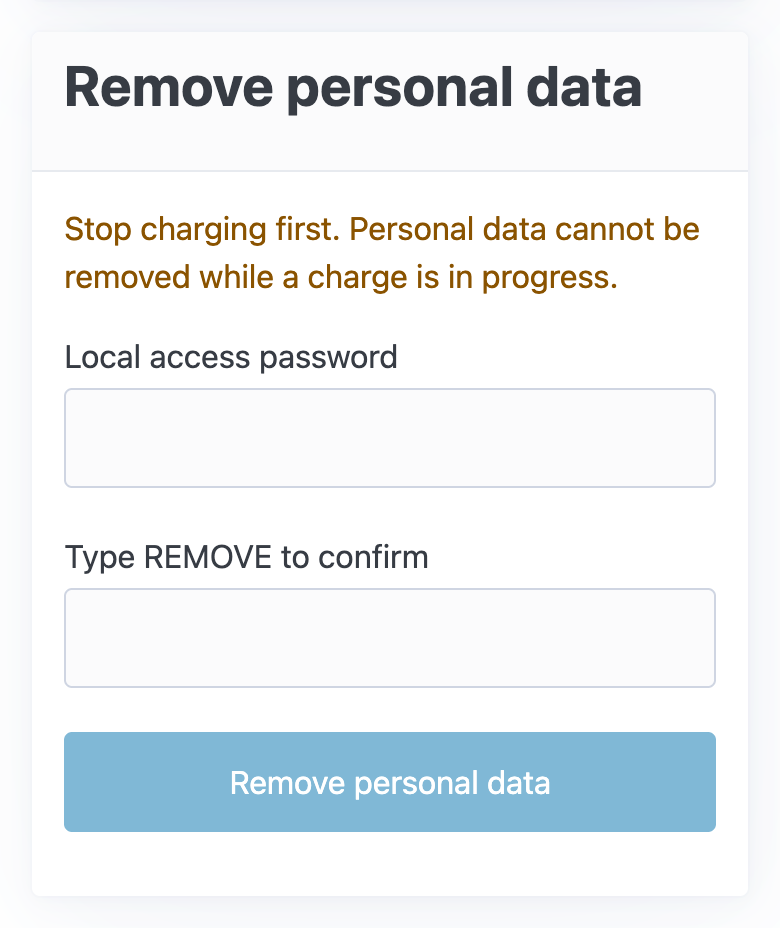
- The charger must not be charging. Stop any charge first.
- The charger must have a local access password, because you enter it again to confirm. If it doesn't have one yet, use the app over Bluetooth instead.
- Have the Local access card from the box. You log in with its password afterwards.
Remove it
- Open the setup page and log in. See Open and log in to the setup page.
-
On the status page, tap Personal data. The page lists what is removed, what is kept, and what happens next. What happens next names the connection the charger uses now.

-
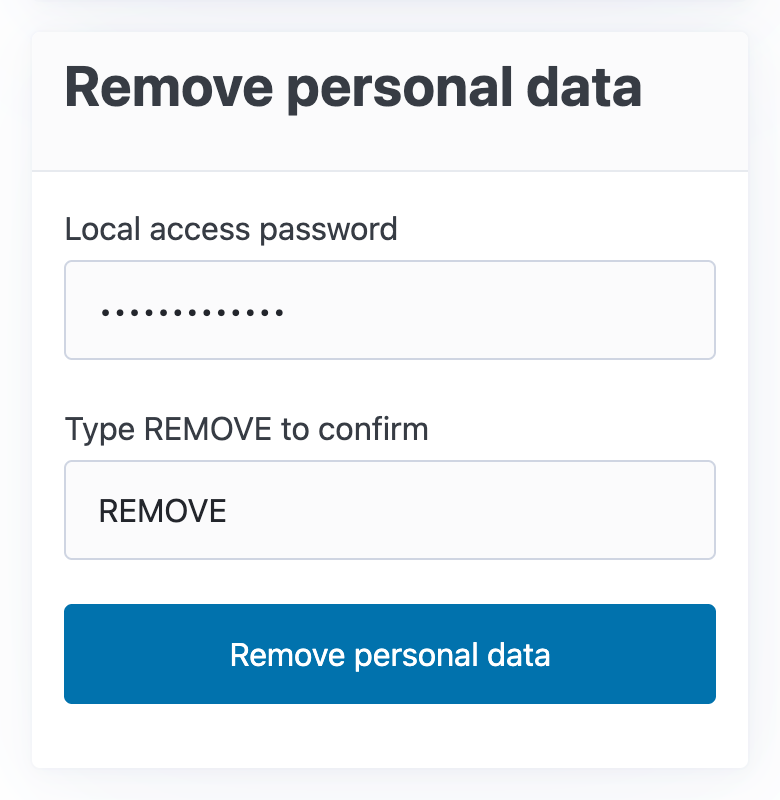
Under Remove personal data:
- enter the Local access password again;
- type
REMOVEin Type REMOVE to confirm.
-
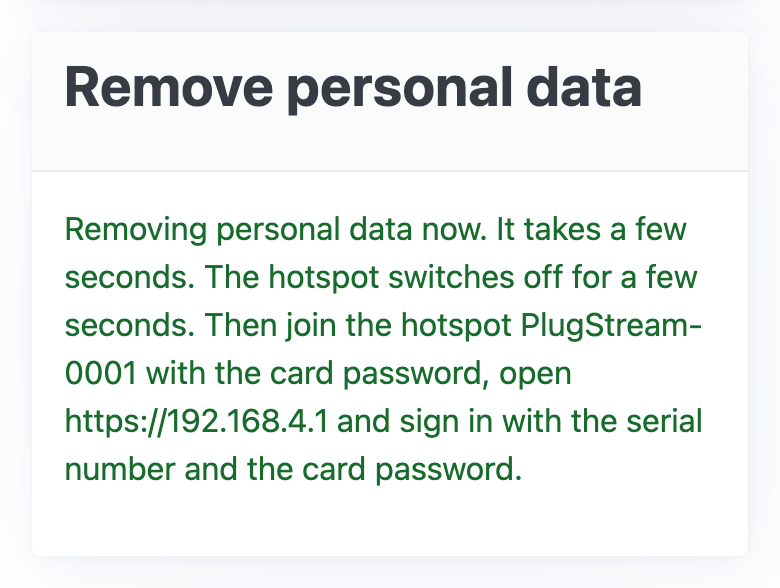
Tap Remove personal data. The page says Removing personal data now, then what to do next for your connection.
What happens next
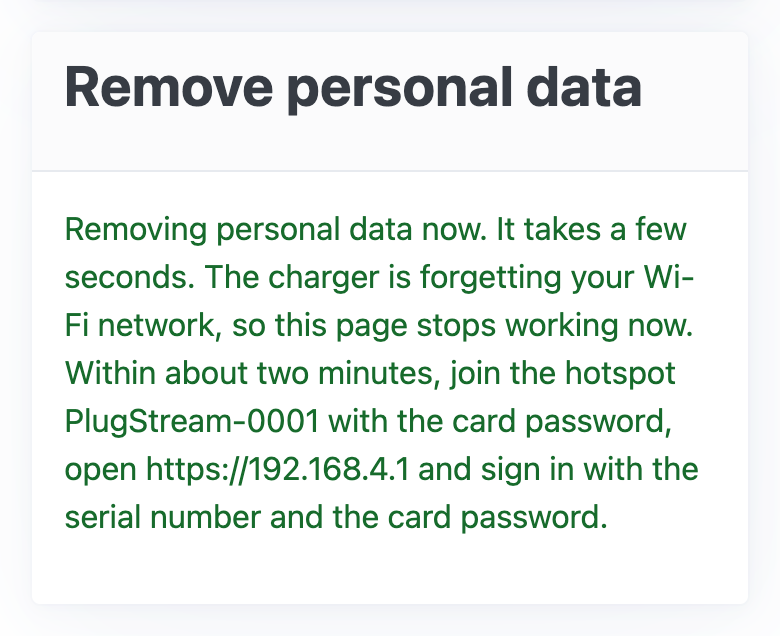
The charger forgets your Wi-Fi network and goes offline, so the setup page stops working on your home network.
Within about two minutes, the charger's hotspot comes on:
- Join
PlugStream-XXXXwith the card password. - Go to
https://192.168.4.1. - Log in with the serial number and the card password.
Then connect the charger to Wi-Fi again if you are keeping it. See Connect your charger to Wi-Fi.
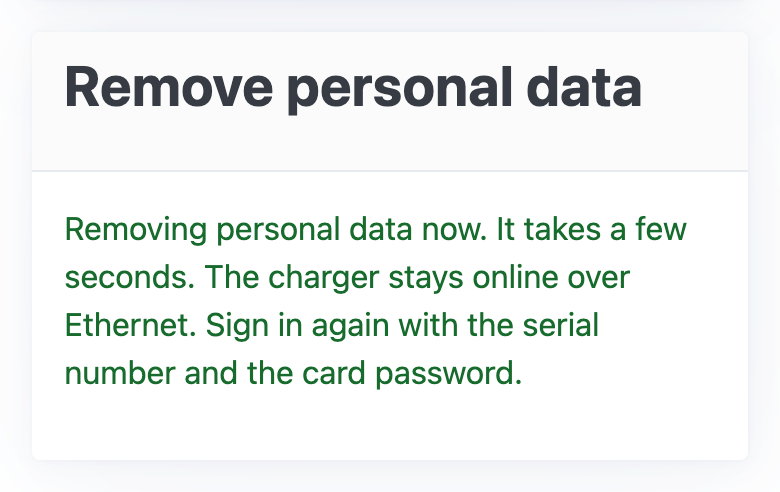
The charger stays online over Ethernet. Log in again with the serial number and the card password.
A static IP address goes back to automatic addressing (DHCP), so the charger's address may change. Use https://PlugStream-XXXX.local to find it again.
The hotspot switches off for a few seconds. Then join PlugStream-XXXX again with the card password, go to https://192.168.4.1, and log in with the serial number and the card password.
Phones paired with the charger over Bluetooth have to pair again.
A charger that came without a card
The local access password doesn't go back to a card password, because there isn't one. The charger has no password until PlugStream gives it a new one, which the app then shows. Until then:
- the setup page opens only on the hotspot;
- the hotspot password is the adoption code on the label on the charger's shipping box;
- you log in with the serial number alone.
The page explains this under Signing in again.
If it is refused
| The page says | What to do |
|---|---|
| Stop charging first. Personal data cannot be removed while a charge is in progress. | Stop the charge, then reload the page. The button stays greyed out until then. |
| The password is wrong. | Enter the local access password you logged in with. After 5 wrong passwords the page makes you wait, as at login. |
| The charger is already removing data or resetting. Try again in a minute. | Wait a minute, then reload the page. |
| Type REMOVE to confirm. | Type the word REMOVE in the confirmation field. |