Check or Change the OCPP Connection on the Setup Page
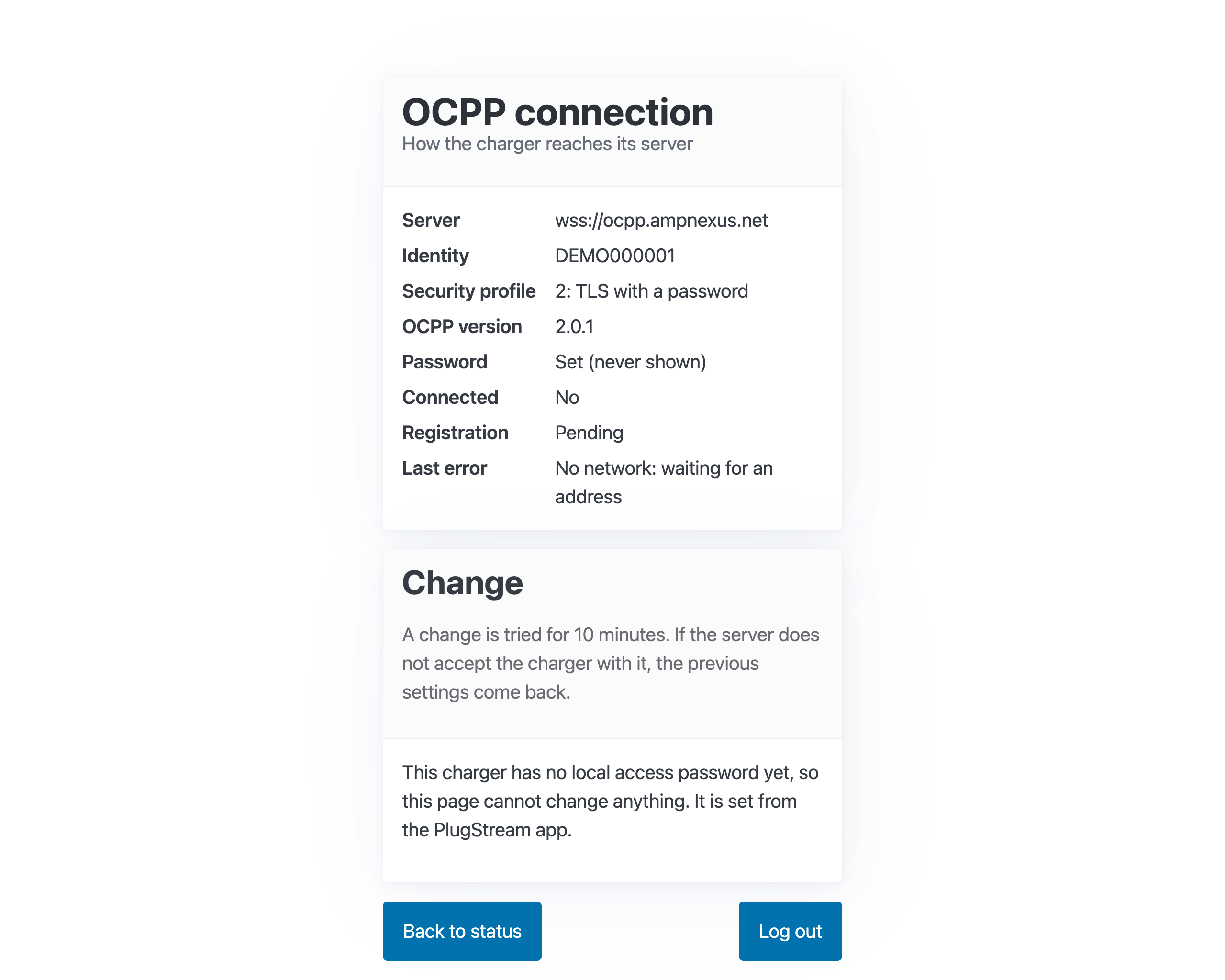
The OCPP connection page shows how the charger reaches its server, the charge station management system (CSMS), and lets you change it. Most installations never need to: PlugStream sets the connection when the charger is commissioned. Only change it when PlugStream Support or the charge point operator asks you to.
You need the charger's serial number and its local access password. See Open and log in to the setup page. The connection can't be changed during a charge.
Check the connection
- Log in to the setup page and tap OCPP connection.
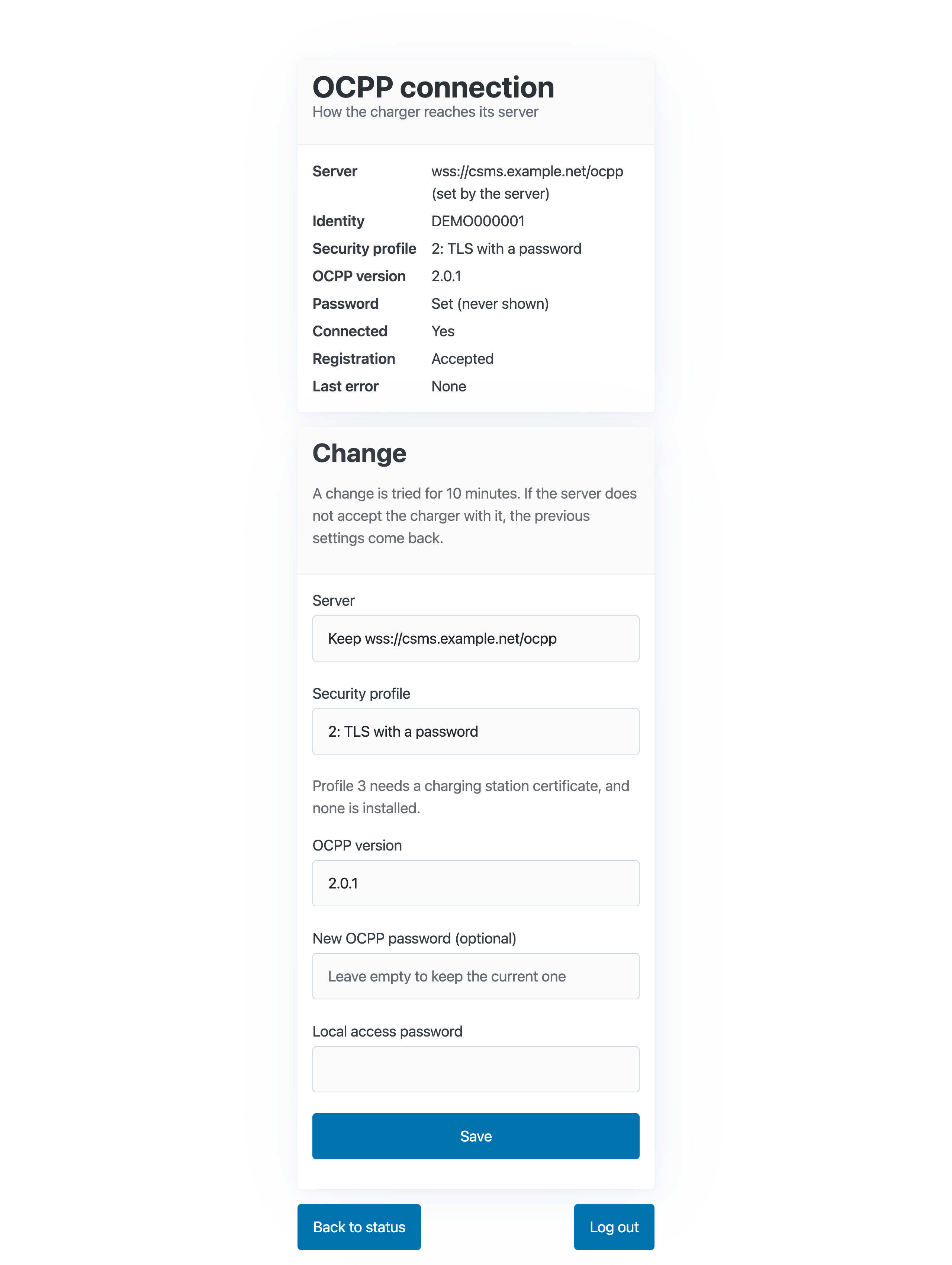
- The top card shows:
- Server: the CSMS address the charger connects to.
- Identity: the name the charger uses on the server. It is the serial number, and it can't be changed here.
- Security profile, OCPP version, and whether an OCPP Password is set. The password is never shown.
- Connected, Registration and Last error, as on the status page.
Change it
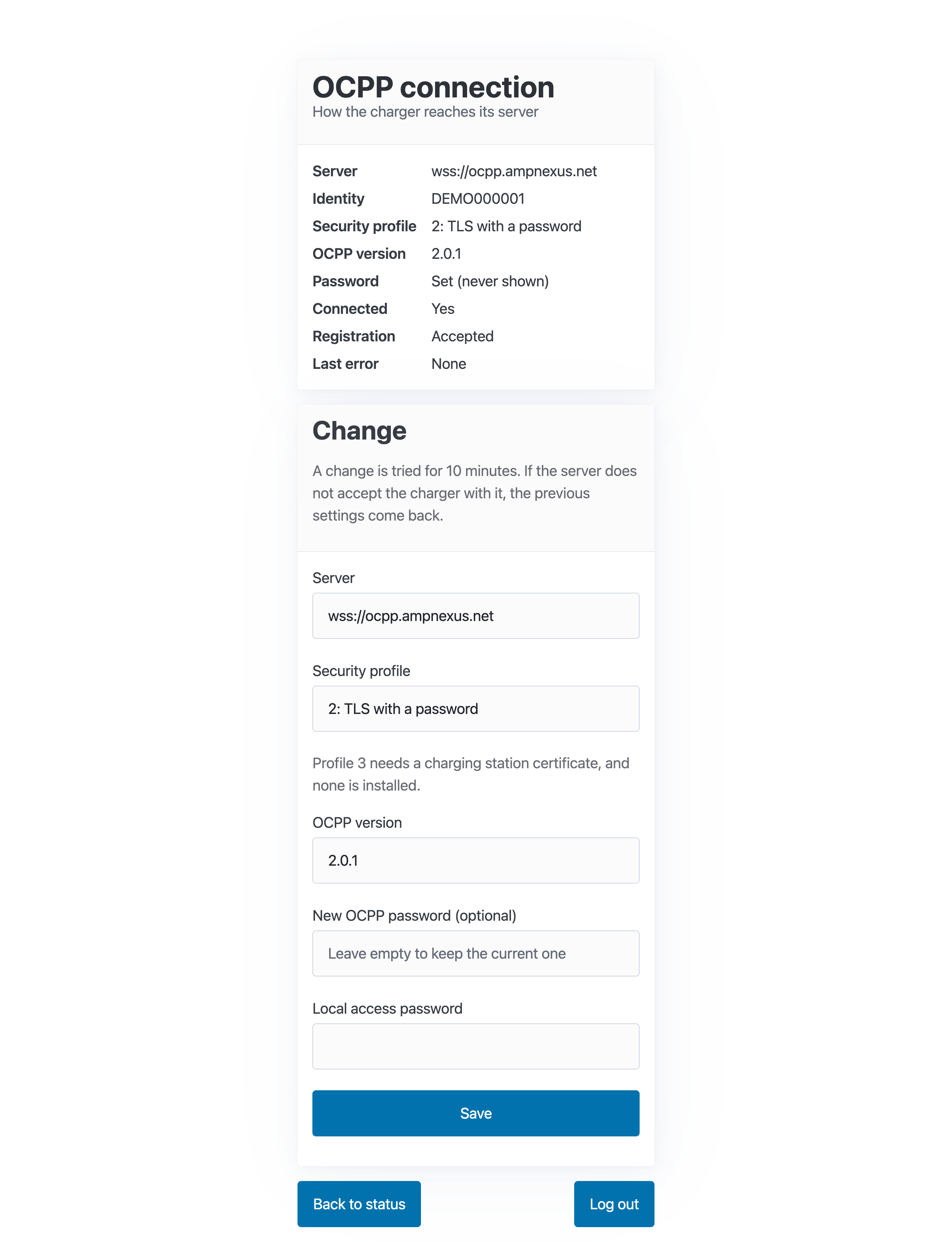
- Under Change, choose what to change:
- Server: only approved PlugStream servers are offered. A charger can't be pointed at any other server from this page.
- Security profile: 2: TLS with a password, or 3, which needs a charging station certificate. The page says when none is installed. See Check the charger's certificates.
- OCPP version: 1.6, 2.0.1 or 2.1.
- New OCPP password (optional): leave it empty to keep the current one.
- Enter the Local access password again. This is the setup page's password, not the OCPP password.
- Tap Save.
The dropdowns on this page don't show an arrow, so they look like text boxes. Tap them to choose.
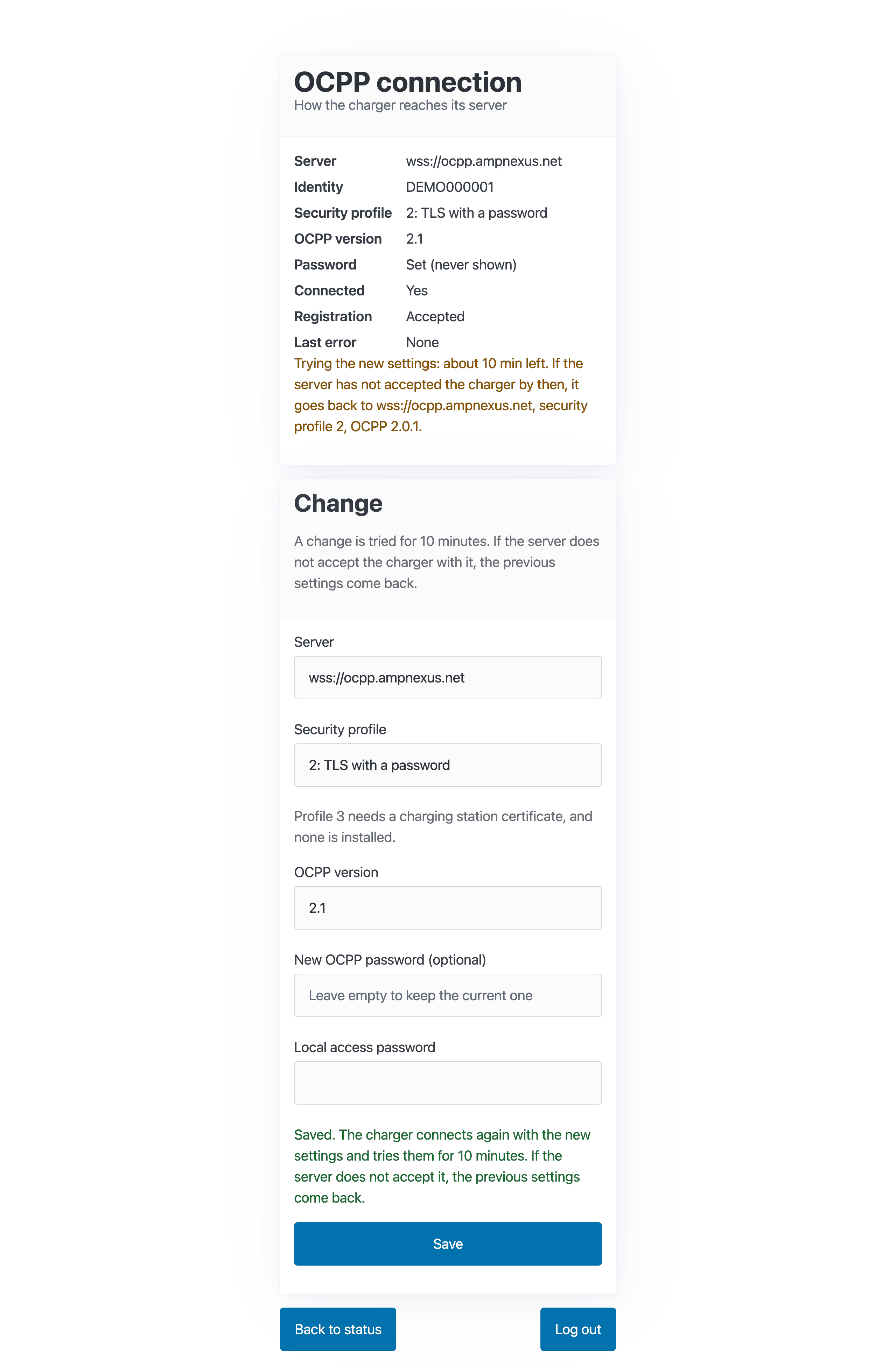
The 10-minute trial
Every change is a trial. The page shows Trying the new settings: about 10 min left, and what it will go back to. If the server hasn't accepted the charger within 10 minutes, the previous settings come back by themselves.
If it isn't saved
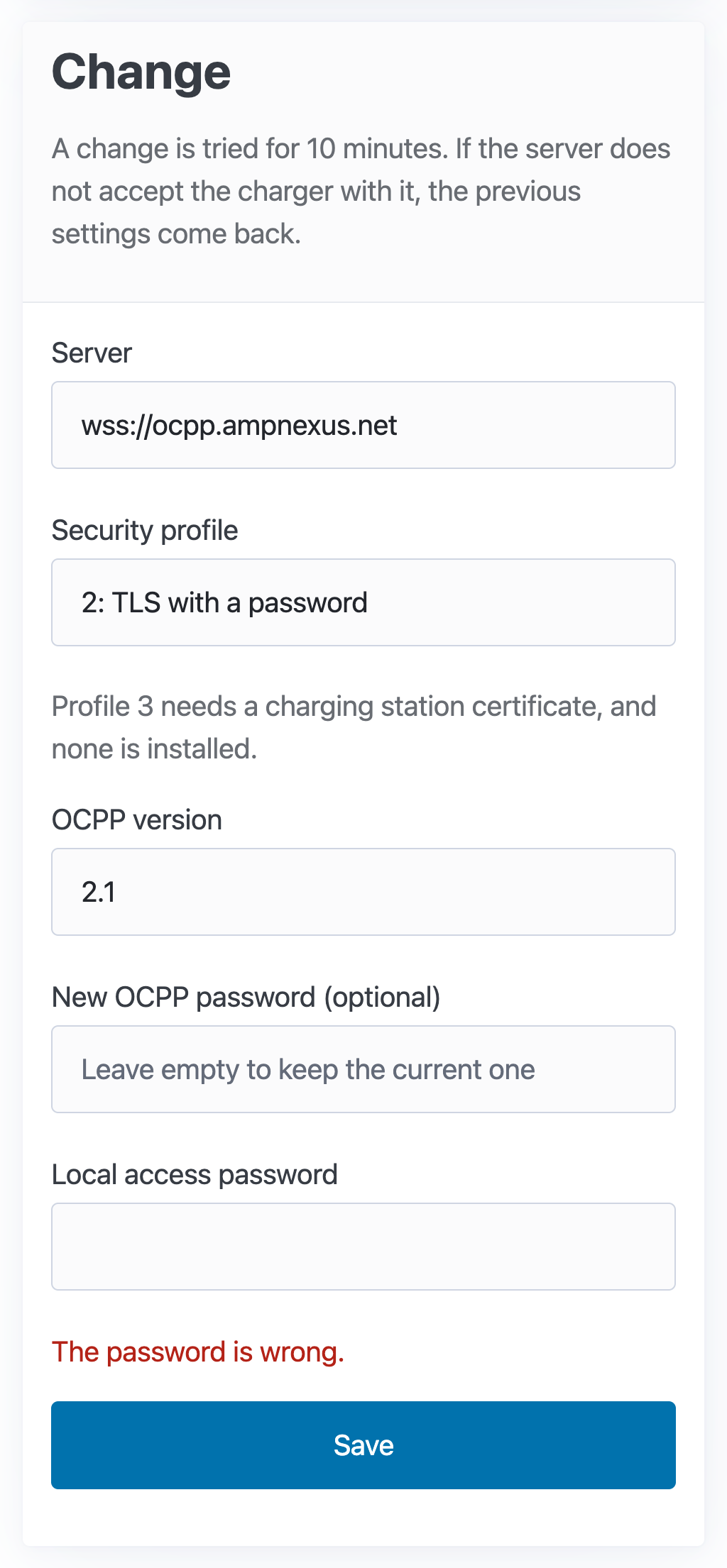
The password is wrong. This is the local access password, entered under Local access password.
A server marked "set by the server"
The CSMS can move the charger to another server itself. The page then shows that server with (set by the server), and the Server list offers Keep that server alongside the approved ones. Leave it as it is unless PlugStream Support asks you to change it.
A charger with no local access password
The page shows the connection, but says This charger has no local access password yet, so this page cannot change anything. The password comes from the PlugStream app. See Your charger's local access password.