Install a Firmware File on the Setup Page
Only when PlugStream Support asks you to
Chargers update their firmware by themselves over the internet. See Firmware updates. Only install a file by hand when PlugStream Support sends you one and asks you to. They will also tell you which version to expect.
The charger checks every file before it installs it:
- it must be PlugStream firmware for this charger;
- it must be no larger than 6 MB;
- it must not be older than the firmware running now, unless PlugStream Support has allowed that on your charger for a short time.
A file that fails these checks is not installed.
Upload the file
- Save the file from PlugStream Support on your phone or laptop.
- Open the setup page and log in. See Open and log in to the setup page.
-
Tap Firmware. The Local firmware update page shows Current firmware, and what is happening now (Idle).

-
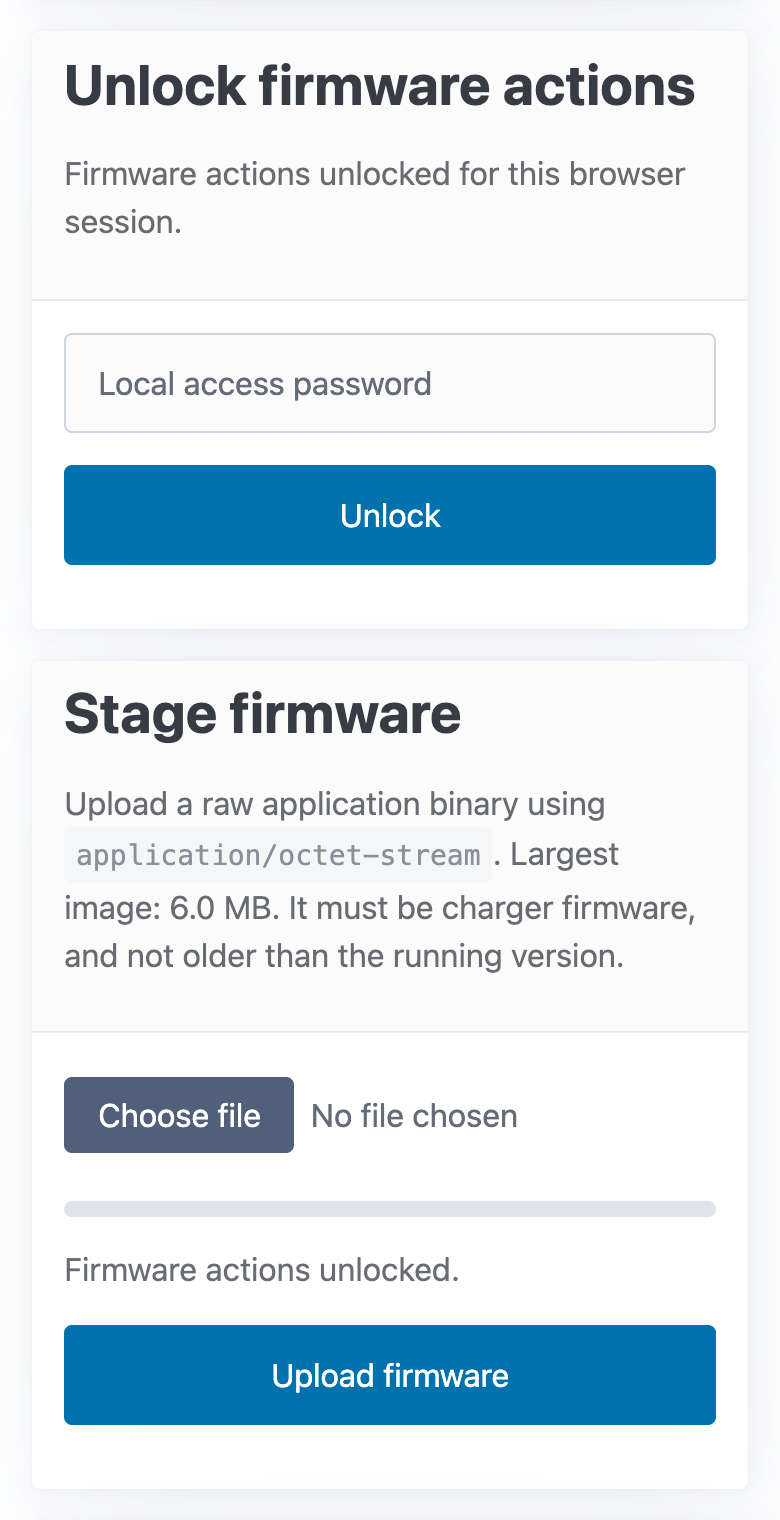
Under Unlock firmware actions, enter the local access password again and tap Unlock. The page says Firmware actions unlocked for this browser session.
-
Under Stage firmware, tap Choose file, pick the file, and tap Upload firmware. When the upload finishes, the page says Firmware staged successfully, and Staged version shows the new version. Check that it is the version PlugStream Support told you to expect.

Install it
- Tap Install staged firmware. Your browser asks: "Install the staged firmware and allow the charger to reboot when safe?" Tap OK.
-
The state changes to Installing, and the page says Install requested. The device will wait until the connector is idle.

-
If the charger isn't charging, it installs straight away and restarts, even though the message says it will wait. If it is charging, it waits until the charge ends.
- The setup page goes away while the charger restarts. After a few minutes, open it again and check Firmware on the status page.
Each install asks for the local access password again.
If the file is refused
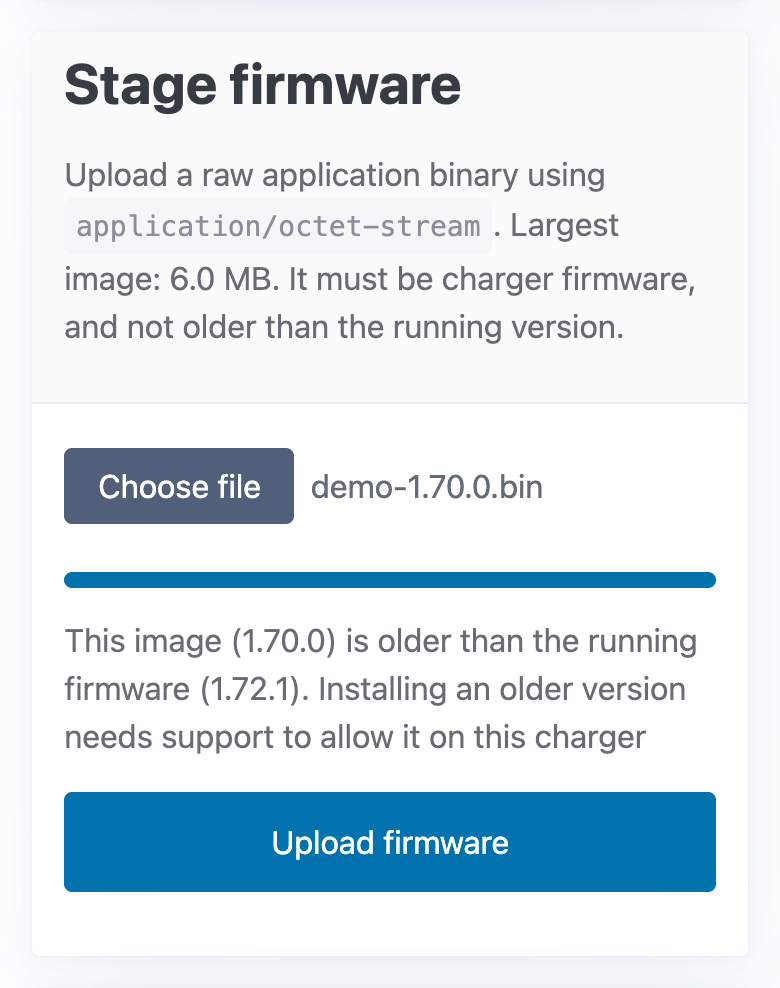
"This image … is older than the running firmware …" Your browser shows this as an alert starting Failed:. The page then shows it in grey under the upload bar. The file is an older version than the one already running, so it is not installed. Contact PlugStream Support: they can allow it on your charger for a short time if it's really needed.
To remove an uploaded file without installing it, unlock the page and tap Clear staged firmware.
The page also shows technical details for PlugStream Support, such as Running partition and Boot partition. You don't need them.