Open and Log In to the Setup Page
You can open the setup page in two ways:
| Where you are | Use it when |
|---|---|
| On your home network | The charger is online, on Wi-Fi or Ethernet, and has a local access password. |
| On the charger's hotspot | The charger is offline, for example after you change your router, or it has no local access password yet. |
The setup page needs charger firmware 1.72 or later.
On your home network
- Use a phone or laptop on the same network as the charger.
- In a browser, go to
https://PlugStream-XXXX.local.XXXXis the last 4 characters of the charger's serial number. The MyPlugStream app shows this address under Local access, as Setup page on your home network. - The first time, your browser shows a security warning. See The browser warning.
- Log in:
- Username: the charger's serial number.
- Password: the local access password.
- Tap Log in.
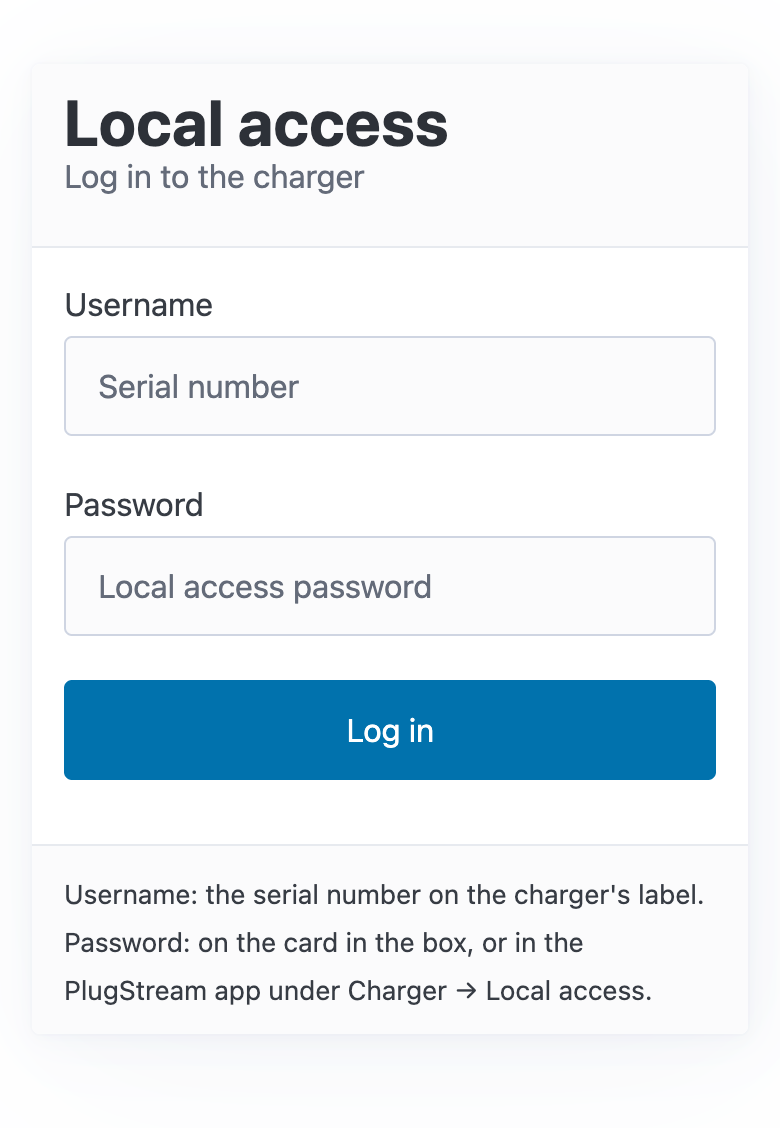
If the .local address doesn't open, use the charger's IP address from your router's list of connected devices, starting with https://.
Until the charger has a local access password, the home network address shows only this: "The charger's portal opens on your home network once the charger has a local access password." Use the hotspot instead.
On the charger's hotspot
The charger switches its hotspot on when it has no connection to your network.
- On your phone or laptop, open the Wi-Fi settings and join the network called
PlugStream-XXXX.- Wi-Fi password: the local access password. If your charger doesn't have one yet, use the adoption code on the label on the charger's shipping box, exactly as printed.
- The setup page usually opens by itself. If it doesn't, go to
https://192.168.4.1in a browser. - The first time, your browser shows a security warning. See The browser warning.
- Log in:
- Username: the charger's serial number.
- Password: the local access password. If the charger doesn't have one yet, the page has no password field: the serial number alone logs you in.
- Tap Log in.
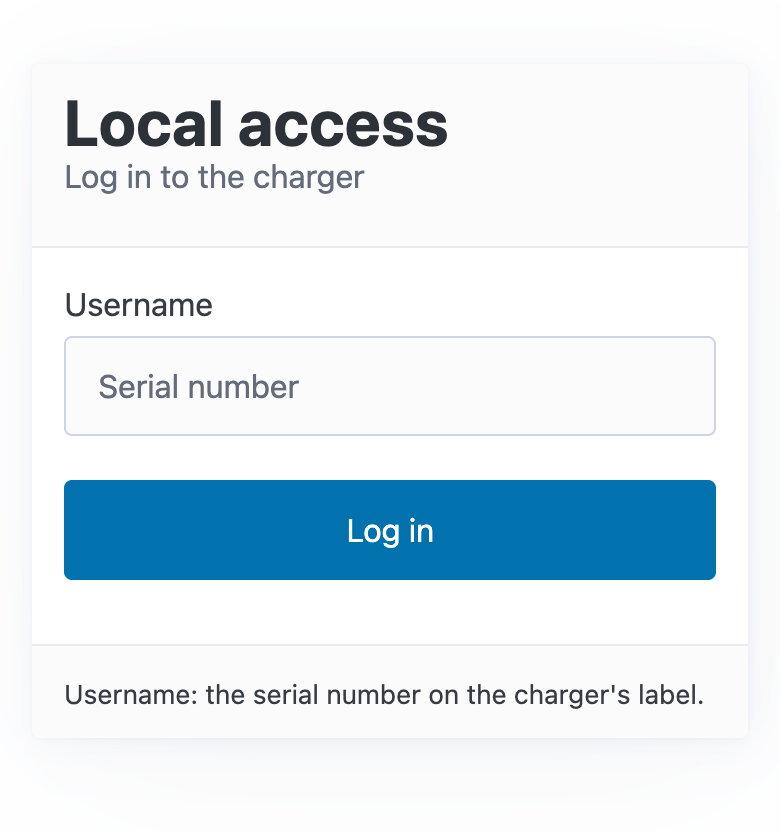
Phones sometimes leave a Wi-Fi network that has no internet. If yours offers to stay connected to PlugStream-XXXX, choose to stay.
The browser warning
The setup page uses a secure https:// connection with a certificate that your charger makes for itself. Your browser doesn't recognise that certificate, so it warns you the first time you open the page.
Before you continue, check that it really is your charger. Compare the certificate's SHA-256 fingerprint with the one in the MyPlugStream app. The steps are in Your charger's local access password: the browser warning. If the fingerprints don't match, don't log in, and contact PlugStream Support.
If you can't log in
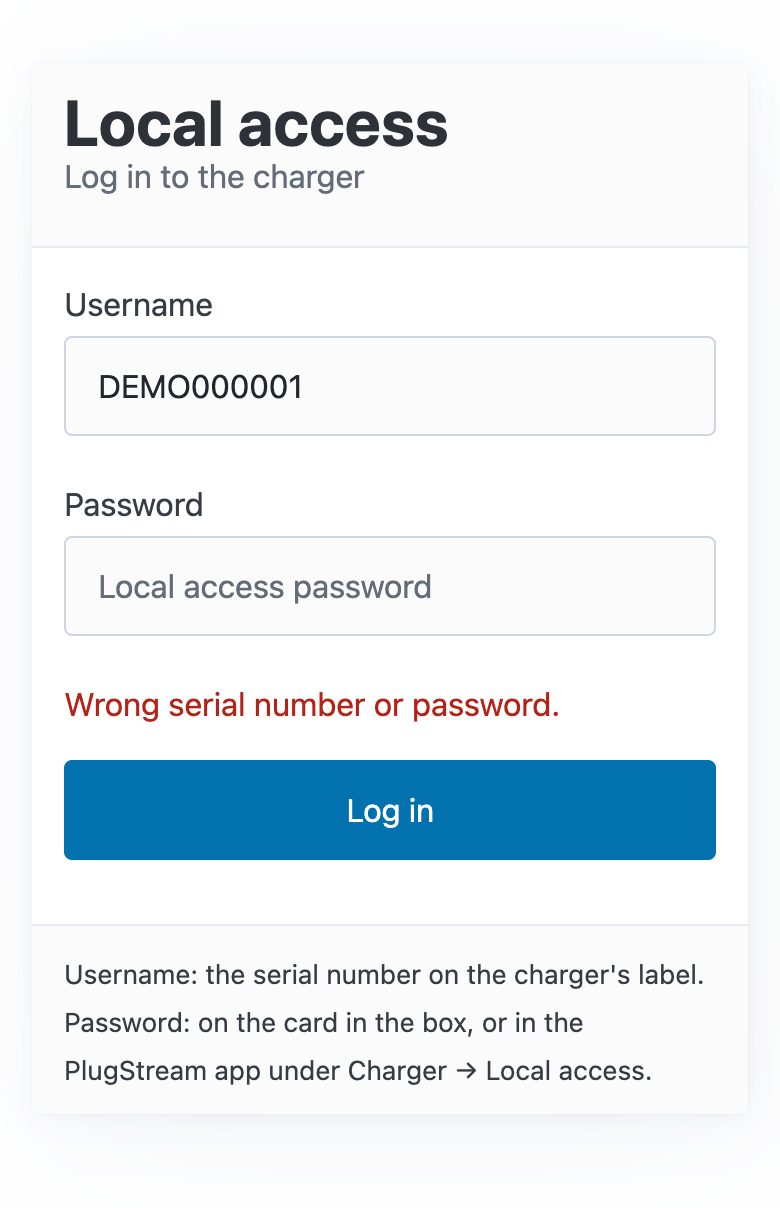
"Wrong serial number or password." Check the serial number on the charger's label and the password, then try again. The password is case-sensitive.
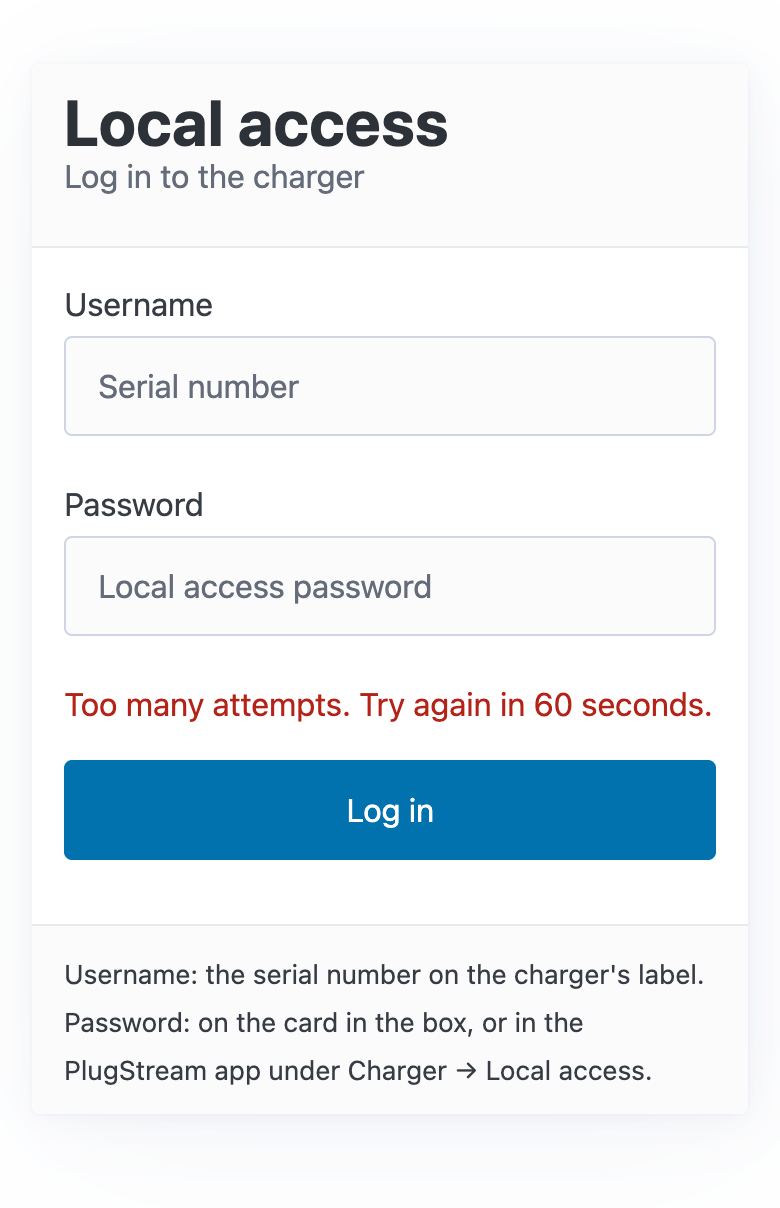
"Too many attempts. Try again in 60 seconds." After 5 wrong passwords, the setup page stops accepting logins for 60 seconds. Each further wrong password doubles the wait, up to 15 minutes. The page says how long to wait.
You don't know the password. See If you have forgotten the password.
Log out
Tap Log out at the bottom of any page. The setup page also logs you out after 15 minutes without activity.