What Screenshots Should I Send to PlugStream Support?
Screenshots help PlugStream Support understand what your charger, app, and vehicle are reporting at the same time.
You do not need every screenshot for every issue. Use the sections below that match the problem you are seeing.
Keep private details safe
Do not send your password, payment card details, or full home Wi-Fi password. It is fine if a screenshot shows your charger name, location name, or charger serial number when support needs to identify the charger.
For most charging issues
Send these first:
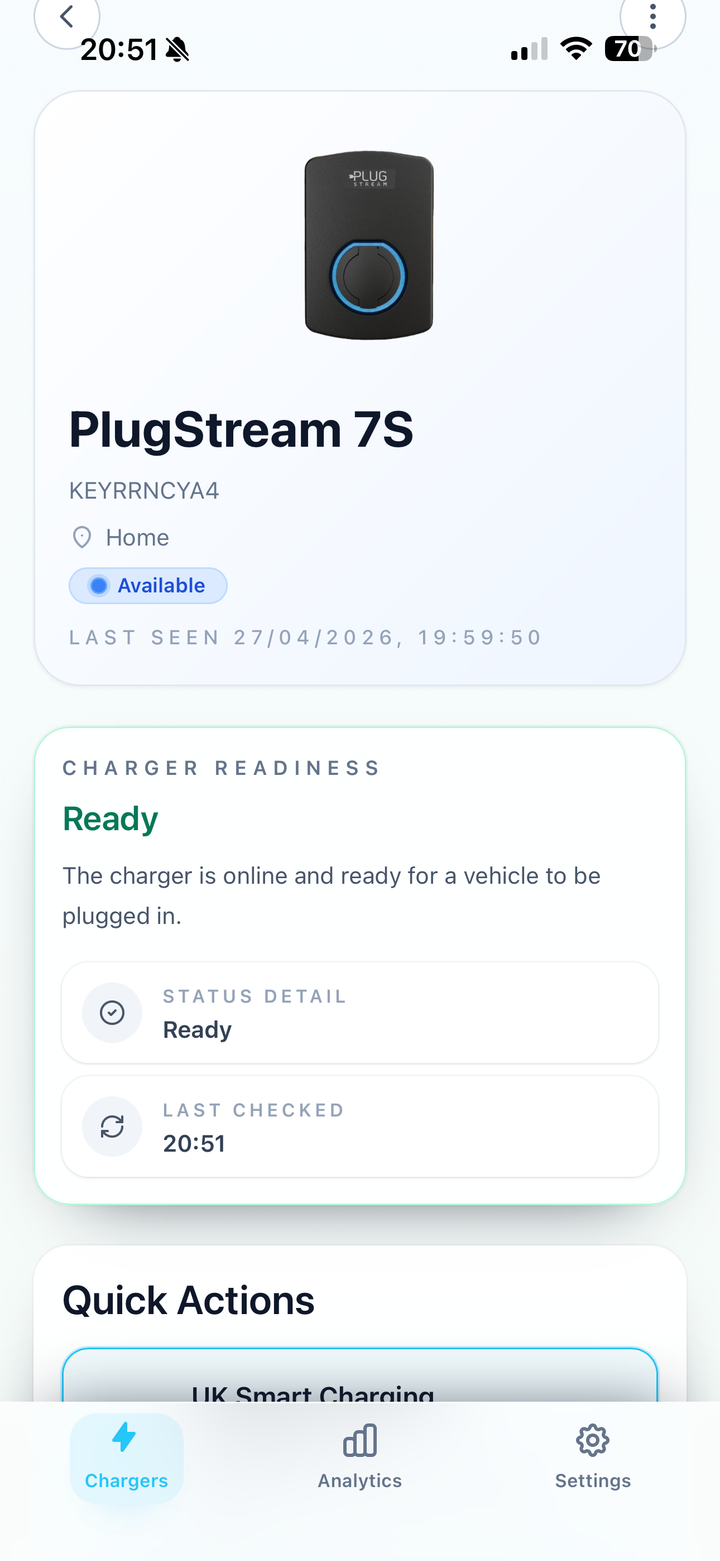
- Charger readiness card from the MyPlugStream app.
- Charging mode or charging settings screen.
- LED photo or short video showing the colour and pattern on the charger.
- Vehicle app charging screen, if the vehicle has its own schedule, battery limit, or charging message.
The Charger readiness card is the most useful starting point because it shows whether the charger is ready, waiting, charging, paused, offline, disabled, or faulted.
If charging is waiting or delayed
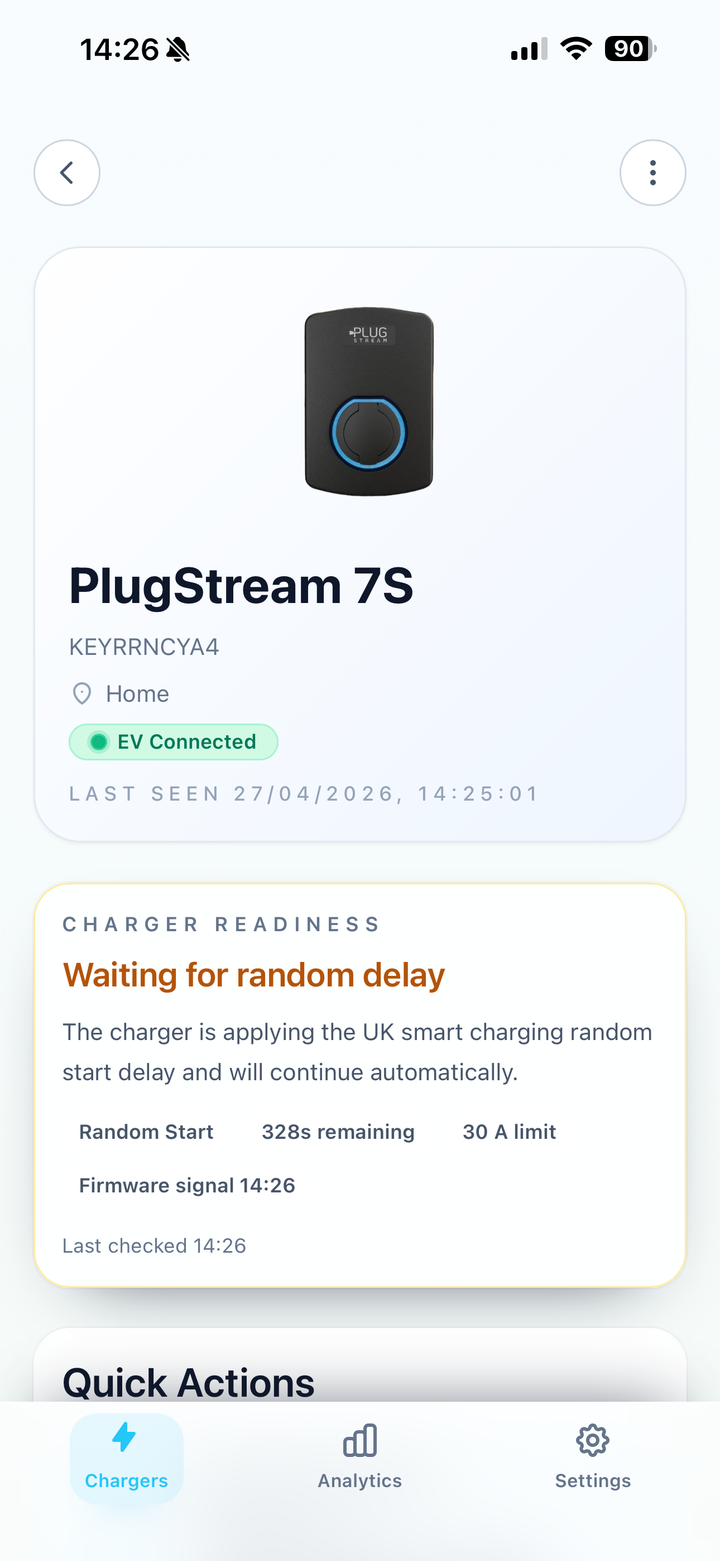
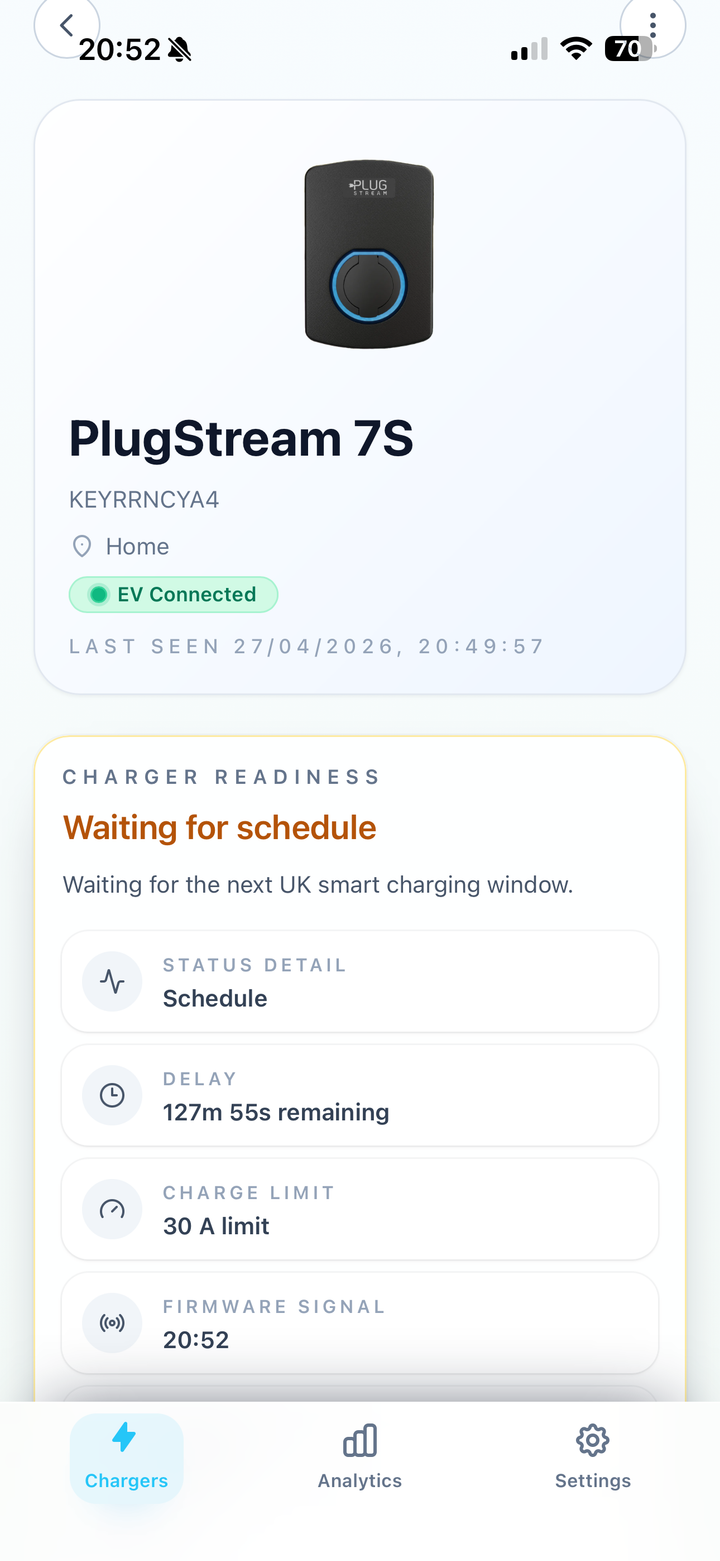
Send a screenshot showing the exact Charger readiness title and message.
Examples include:
Vehicle connected, waiting for scheduleWaiting for random delayWaiting for vehicleWaiting for user to startWaiting for chargerCharging disabled
If the card shows a wait time, limit, reason, or checked-at time, keep that visible in the screenshot.
If scheduled charging does not start
Send:
- MyPlugStream schedule or PlugStream Sense settings.
- Charger readiness while the vehicle is plugged in and waiting.
- Vehicle app schedule or departure-time screen, if one is set.
- Vehicle battery charge limit screen, if available.
- Vehicle Wake Assist setting, if enabled or greyed out.
If both the vehicle and MyPlugStream have schedules, include both screens. Two schedules can hold each other back, so this is often the fastest thing for support to check.
If Vehicle Wake Assist is involved
Send a screenshot of:
- the Vehicle Wake Assist toggle
- any greyed-out or unsupported message shown beside it
- Charger readiness while the charger is waiting for the scheduled window
- the vehicle app screen showing whether the vehicle is asleep, waiting, or refusing charge
Vehicle Wake Assist is a scheduled-charging reliability feature. It is not a tariff or savings feature, and it does not override vehicle limits, site limits, faults, or supplier-managed schedules.
See Vehicle Wake Assist.
If charging is slow or paused
Send:
- Charger readiness card
- current charging power or current shown in the app, if visible
- charging mode and power mode settings
- vehicle charge-rate limit or battery limit
- site load-management or solar settings, if your charger uses them
- a note of any high-power appliances running at the same time
If the app shows Charging paused, Waiting for site telemetry, or a lower amp limit than expected, keep that text visible.
If the charger is offline
Send:
- charger details screen showing offline status
- LED photo or video
- Wi-Fi or network screen in the app, if available
- photo of the router, Ethernet switch, or network cabinet only if support asks for it
- the date and time the charger last appeared online, if you know it
Also mention any recent router, Wi-Fi password, broadband, firewall, power, or installation changes.
If the app or account is the problem
Send:
- the error message you see
- the screen where you are stuck
- the email address you expect to use for the account
- charger serial number, if available
Do not send your password.
Helpful links
- How to contact PlugStream Support
- What is Charger readiness in the MyPlugStream app?
- What do Charger readiness statuses mean?
- Vehicle Wake Assist
- Who to contact for charging issues
Still need help?
Contact PlugStream Support and include enough detail for the team to find your charger and understand what happened.
- Phone: 0300 180 0403
- Email: support@plugstream.co.uk
Please include:
- charger serial number, if you have it
- MyPlugStream account email or site contact email
- LED colour or Charger readiness message
- what you expected to happen and what happened instead
- photos of the charger, cable, connector, or installation area if relevant
- screenshots from the MyPlugStream app if relevant